How to Add Google Drive in GB WhatsApp
Google Drive is useful for storing and restoring WhatsApp chat backups. If you use GB WhatsApp, you may want to connect Google Drive so your important chats, photos, videos, and other media can be backed up safely. However, GB WhatsApp is a modified version of WhatsApp, so Google Drive backup support may not work the same way as it does in the official WhatsApp app.
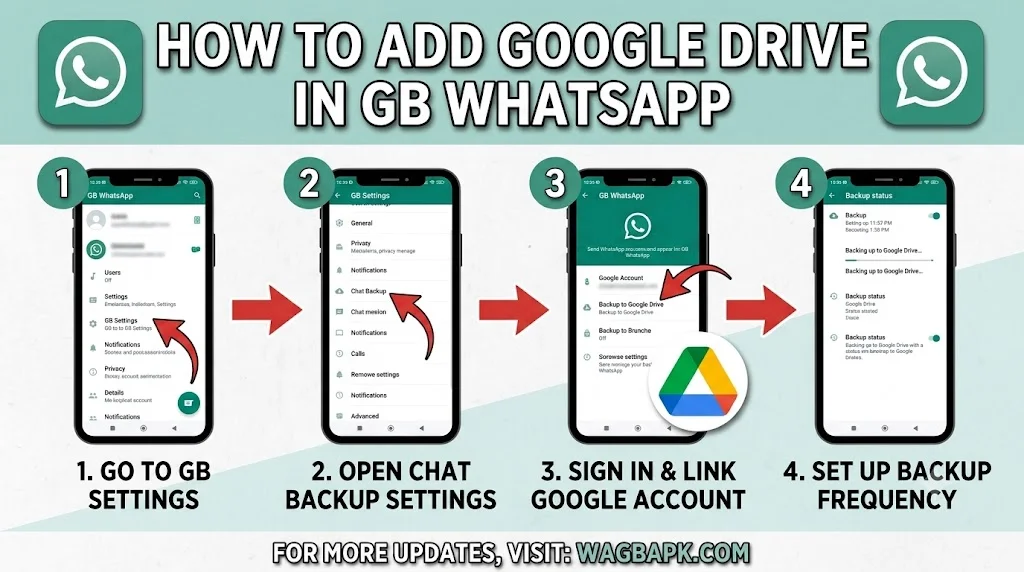
This guide explains the general steps to check and configure Google Drive backup in GB WhatsApp.
What Is Google Drive Backup in GB WhatsApp?
Google Drive backup allows you to save a copy of your WhatsApp conversations and media to your Google account. When supported by your particular GB WhatsApp version, you can configure backup settings and select a Google account for storing your backup.
Google Drive backups can be helpful when changing phones, reinstalling the app, or recovering conversations after an unexpected problem.
Requirements Before Adding Google Drive
Before configuring Google Drive in GB WhatsApp, make sure:
- You have an active Google account.
- Google Play Services is installed and working correctly.
- Your phone has a stable internet connection.
- Enough Google Drive storage is available.
- GB WhatsApp has the required storage and account permissions.
- You are using a version that supports Google account backup features.
It is also a good idea to keep a local backup of important chats because modified apps may have compatibility limitations.
How to Add Google Drive in GB WhatsApp
The exact menu names can vary between GB WhatsApp versions. Follow these general steps:
1. Open GB WhatsApp
Launch GB WhatsApp on your Android phone and open the main chat screen.
2. Open Settings
Tap the three-dot menu in the top-right corner and select Settings.
Depending on the version, backup options may appear under Chats, Backup and Restore, or a similar section.
3. Open Chat Backup
Find and open the Chat Backup or Backup and Restore option. Look for settings related to Google Drive or cloud backup.
4. Select Your Google Account
If Google Drive backup is supported, you may see an option to select or add a Google account. Choose the Google account you want to use for backups and allow the required permissions.
If no Google account option appears, your current GB WhatsApp version may not support Google Drive integration.
5. Choose a Backup Schedule
If the option is available, select how frequently you want backups to run. Common choices can include daily, weekly, or monthly backups.
You may also find an option to create a manual backup whenever you need one.
6. Configure Media Backup
Some versions provide additional settings for videos and other large media files. Including videos can make backups much larger, so choose the option that suits your available storage.
7. Create a Manual Backup
After configuring the settings, use the Back Up option to start a manual backup. Keep the phone connected to the internet and avoid closing the app while the backup is being created.
Google Drive Option Is Missing
If you cannot find a Google Drive option in GB WhatsApp, do not assume that something is wrong with your Google account. Modified WhatsApp applications can have different backup features depending on the version, and some versions may only provide local backup.
You can check the following:
- Update to a version that officially supports the backup feature.
- Make sure Google Play Services is working.
- Confirm that your Google account is active on the phone.
- Check available Google Drive storage.
- Review the app’s permissions.
- Restart your phone and check the backup settings again.
If the feature remains unavailable, use the available local backup option instead of relying on an unsupported Google Drive integration.
How to Restore a Google Drive Backup
If your GB WhatsApp version supports Google Drive restoration, the restoration process normally requires the same Google account and phone number used to create the backup.
After installing and setting up the compatible application, verify your phone number and follow the on-screen restoration instructions if a backup is detected.
Restoration support can vary between modified WhatsApp versions. A backup created by one application or version may not always be recognized by another.
Why Google Drive Backup May Not Work
There are several reasons why Google Drive backup may fail in GB WhatsApp.
Unsupported Version
Some modified versions may not include working Google Drive integration. Features can also change after an update.
Google Play Services Problems
Google account and Drive functions can depend on Google Play Services. If these services are disabled or outdated, backup features may not work correctly.
Insufficient Storage
A full Google Drive account can prevent new backups from being uploaded. Check your available storage before creating a large backup.
Poor Internet Connection
Uploading a backup requires a reliable internet connection. Large media backups can take considerably longer than text-only backups.
Account or Permission Issues
Incorrect Google account settings or missing permissions can interfere with backup operations.
Google Drive Backup vs Local Backup
| Feature | Google Drive Backup | Local Backup |
|---|---|---|
| Storage location | Google Drive | Phone storage |
| Internet required | Yes | No for creation |
| Easy to transfer | Generally easier | Requires manual transfer |
| Cloud storage | Uses Drive storage | Uses phone storage |
| Availability in GB WhatsApp | Depends on version | Usually more widely available |
For important conversations, maintaining a local backup in addition to any available cloud backup can provide extra protection.
Tips for Safer GB WhatsApp Backups
Always keep copies of important conversations before changing versions or reinstalling GB WhatsApp. Avoid deleting an existing backup until you have confirmed that a new backup can be created and restored successfully.
Remember that GB WhatsApp is a modified application and may not have the same backup compatibility as the official WhatsApp application. For important data, consider keeping an additional local copy rather than depending entirely on Google Drive.
Frequently Asked Questions
Can I add Google Drive to GB WhatsApp?
It depends on the GB WhatsApp version you are using. Some versions may provide Google Drive-related backup options, while others may only support local backups.
Why can’t I see Google Drive in GB WhatsApp?
The feature may not be available in your particular version. Google Play Services, account permissions, storage limitations, or compatibility problems can also affect the available options.
Can GB WhatsApp restore an official WhatsApp Google Drive backup?
Not necessarily. Backup compatibility can vary between official WhatsApp and modified WhatsApp applications. A backup should not be assumed to be transferable between different applications or versions.
Is local backup available in GB WhatsApp?
Many GB WhatsApp versions provide local backup functionality. The exact backup location and menu names can vary between versions.
Do I need a Google account?
A Google account is required for Google Drive storage, but it may not be required for creating a local backup.
Final Thoughts
Adding Google Drive to GB WhatsApp depends on the features supported by your particular version. If Google Drive integration is available, you can generally find it through the app’s Settings, Chats, and Backup options, then select your Google account and configure the backup schedule.
Because modified WhatsApp versions can have different compatibility and backup features, always keep an additional local backup of important chats. This can help protect your conversations if Google Drive integration is unavailable or a backup cannot be restored.