GB WhatsApp Themes: How to Customize Your Chat Interface
GB WhatsApp Themes are one of the customization features that attract users who want more control over the appearance of their messaging app. Themes can change the colors, backgrounds, icons, chat bubbles, and overall interface to create a different visual experience.
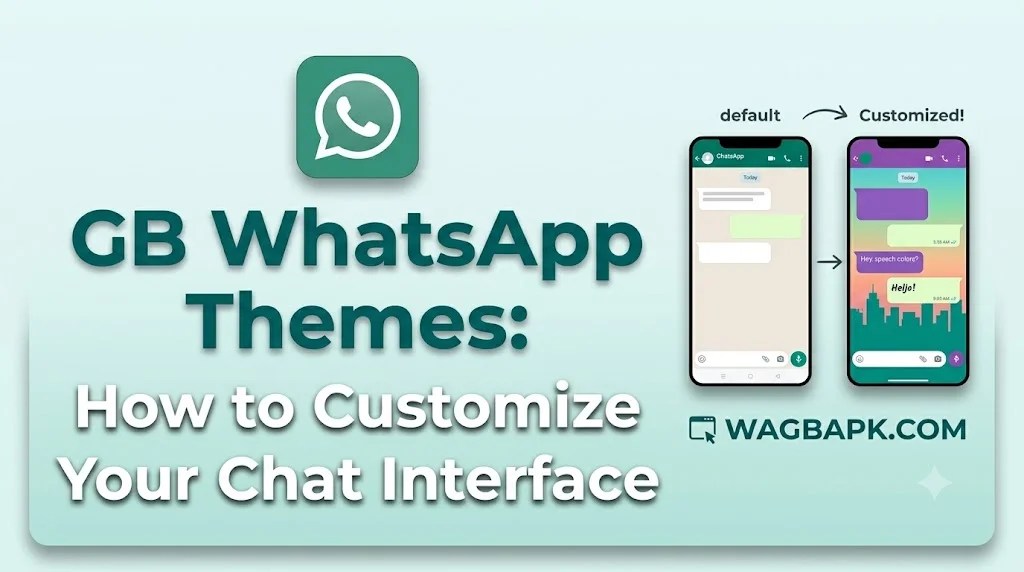
Unlike the standard WhatsApp interface, GB WhatsApp may provide additional customization settings depending on the version being used.
What Are GB WhatsApp Themes?
GB WhatsApp themes are customized designs that change the appearance of the application. A theme can modify different parts of the interface, including the chat screen, conversation list, notification colors, toolbar, and background.
Users can choose a ready-made theme or customize individual elements according to the options available in their GB WhatsApp version.
How to Change Themes in GB WhatsApp
The exact menu names can differ between versions, but the general process is usually similar.
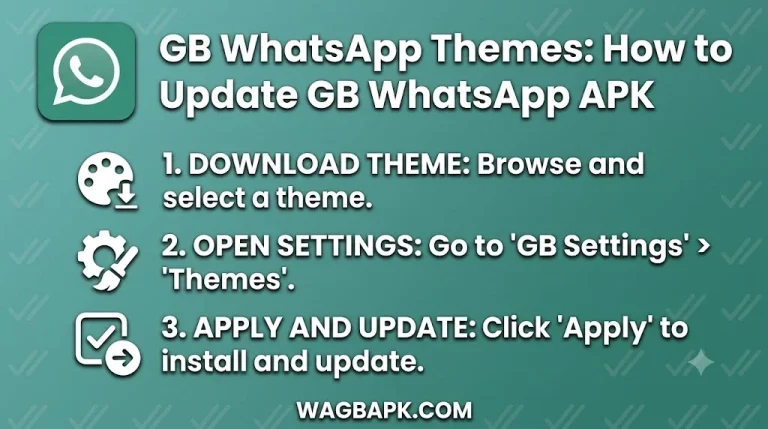
1. Open GB WhatsApp
Launch GB WhatsApp and go to the main chat screen.
2. Open the GB Settings
Tap the three-dot menu in the top-right corner and look for GB Settings or a similar customization option.
3. Find the Themes Section
Inside GB Settings, look for Themes, Theme Store, or Download Themes. The location can vary depending on the version.
4. Select a Theme
Browse the available themes and choose one that matches your preferred style. Some versions may organize themes into categories such as dark, light, colorful, simple, or transparent designs.
5. Apply the Theme
Select the theme and use the Apply option if available. GB WhatsApp may restart or refresh the interface before the changes become visible.
How to Create a Custom GB WhatsApp Theme
Some GB WhatsApp versions offer detailed customization instead of only ready-made themes. You may be able to change individual interface elements.
Common customization options can include:
- Chat background
- Conversation colors
- Toolbar appearance
- Text colors
- Chat bubble styles
- Notification colors
- Main screen layout
- Font appearance
- Status screen design
The available settings depend on the version of GB WhatsApp installed on your device.
Popular GB WhatsApp Theme Styles
Dark Themes
Dark themes use darker backgrounds and contrasting text. They provide a different appearance from the standard light interface and are popular among users who prefer a darker design.
Light Themes
Light themes use brighter backgrounds and simple color combinations. They are suitable for users who prefer a clean and traditional interface.
Colorful Themes
Colorful themes can use multiple shades throughout the interface. They can make the chat screen look more personalized.
Minimal Themes
Minimal themes focus on simple backgrounds, limited colors, and a clean interface. They are useful for users who prefer less visual clutter.
Transparent Themes
Some modified WhatsApp versions may offer transparency-related customization. These settings can change the appearance of certain interface areas.
How to Remove a GB WhatsApp Theme
If you want to return to the default appearance, open the theme settings and look for an option such as Reset Theme, Default Theme, or Restore Default.
After applying the default settings, the interface should return to the standard appearance provided by your installed version.
Why GB WhatsApp Themes May Not Work
Sometimes a theme does not apply correctly or only changes part of the interface. Several factors can cause this problem.
Version Compatibility
A theme created for an older version may not work correctly with a newer release. Always check whether the theme is compatible with your current version.
Corrupted Theme Data
Theme files or settings can sometimes become corrupted. Removing the problematic theme and returning to the default design may solve the issue.
App Cache
Temporary application data can occasionally interfere with interface changes. Clearing the app cache may help, but avoid deleting important application data unless you have a verified backup.
Conflicting Customizations
Multiple appearance settings can sometimes conflict with each other. Resetting the theme and applying customizations again can help identify the problem.
Tips for Choosing a GB WhatsApp Theme
Choose a theme that keeps text and icons easy to read. Avoid designs where the background and text have very similar colors because they can make conversations difficult to view.
It is also better to use themes that are compatible with your installed version. Keep a backup of important chats before making major changes to the application.
Are GB WhatsApp Themes Available on Every Version?
No. Theme features can differ between GBWhatsApp versions. One release may provide extensive customization while another may offer fewer options.
If a particular theme setting is missing, it does not necessarily mean there is a problem with your phone. The feature may simply not be included in your current version.
Frequently Asked Questions
What are GB WhatsApp themes?
GB WhatsApp themes are customization designs that change the appearance of the messaging interface, including backgrounds, colors, chat screens, and other visual elements.
How do I change my GB WhatsApp theme?
Open GB Settings, find the Themes section, select an available theme, and apply it. Menu names can vary between versions.
Can I create my own GB WhatsApp theme?
Some versions provide individual customization controls that allow users to change colors, backgrounds, fonts, and other interface elements.
How can I restore the default theme?
Open the theme settings and select an option such as Default Theme, Reset Theme, or Restore Default, depending on your version.
Why is my GB WhatsApp theme not working?
The theme may be incompatible with your version, corrupted, or affected by another customization setting. Returning to the default theme and trying again can help.
Conclusion
GBWhatsApp Themes provide additional ways to personalize the appearance of the messaging interface. Depending on the version, users may be able to select ready-made themes or customize backgrounds, colors, fonts, chat bubbles, and other visual elements.
For the best experience, choose compatible themes, keep your interface readable, and maintain a backup of important conversations before making major changes to the application.