GB WhatsApp Web 2026: How to Use GB WhatsApp on Browser
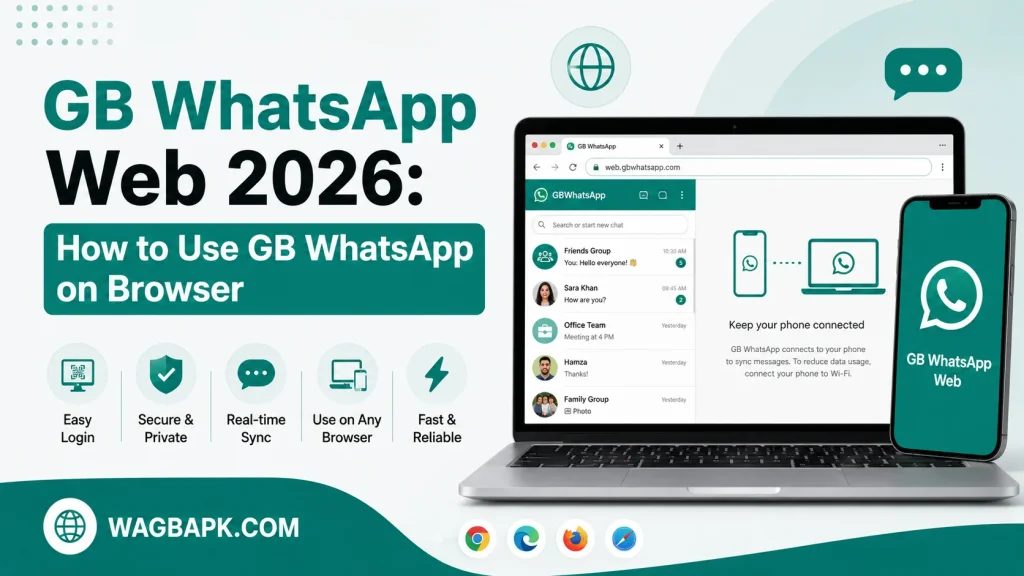
GB WhatsApp Web lets users link their phone’s GB WhatsApp account to a computer browser, mirroring chats without needing a separate desktop app. It works through the same linked-device system that official WhatsApp uses, extended to cover GB WhatsApp’s modified client. This guide walks through how it works, how to set it up, and what to do when syncing issues come up.
What Is GB WhatsApp Web?
GB WhatsApp Web is a browser-based mirror of the GB WhatsApp app installed on a phone, letting messages, media, and calls display on a larger screen. It doesn’t run independently of the phone; instead, it relays data through an active connection between the two devices. This is the same underlying approach official WhatsApp Web uses, just applied to a modified client.
Because GB WhatsApp Web depends on the phone staying connected to the internet, closing the app entirely or losing signal on the phone can interrupt the browser session. Most users keep the phone nearby and connected to Wi-Fi while using the web version for extended periods. This dependency is a normal part of how linked-device systems function, not a flaw specific to GB WhatsApp.
How GB WhatsApp Web Works
Linking a browser session starts with scanning a QR code displayed on the web page using the phone’s GB WhatsApp app. Once scanned, an encrypted connection forms between the phone and the browser, allowing messages to sync in near real time. Every message sent or received on the web session also appears on the phone simultaneously.
The browser session doesn’t store a separate copy of chat history by default; it pulls directly from the phone’s data each time. This means uninstalling GB WhatsApp from the phone or logging out will also disconnect the linked browser session. Understanding this relationship helps explain most of the syncing behavior users encounter.
How to Set Up GB WhatsApp Web
- Open GB WhatsApp on the phone and go to Settings > Linked Devices.
- Tap Link a Device and allow camera access if prompted.
- On the computer, open a supported browser and navigate to the GB WhatsApp Web page.
- Point the phone’s camera at the QR code shown on the browser screen.
- Wait for the connection to confirm, at which point chats will load automatically in the browser.
- Keep the phone connected to the internet for the browser session to remain active.
How to Log Out of GB WhatsApp Web
- On the computer, open the menu icon within the browser session.
- Select Log Out from the available options.
- Alternatively, open Settings > Linked Devices on the phone.
- Tap the specific device listed under active sessions.
- Select Log Out to disconnect that browser session remotely.
- Confirm the browser page reflects the disconnected state before closing it.
Common GB WhatsApp Web Issues and Fixes
- QR code won’t scan: Clear the browser cache or try a different supported browser, since outdated cached data occasionally blocks the scan.
- Messages not syncing: Confirm the phone has an active internet connection and that GB WhatsApp is running in the background.
- Session keeps disconnecting: Check the phone’s battery optimization settings, since aggressive power-saving modes can cut background connections.
- Media not loading: Allow a few extra seconds for larger files, since media transfers through the phone rather than a direct cloud link.
- Web page won’t load at all: Update GB WhatsApp to the latest version, since older builds sometimes lose compatibility with the web-linking feature.
Features Available Through GB WhatsApp Web
Most core GB WhatsApp features carry over to the browser session, though a few remain phone-only.
| Feature | Available on Web |
|---|---|
| Sending and receiving messages | Yes |
| Voice and video calls | Limited, browser-dependent |
| Status viewing | Yes |
| Status download | Phone only |
| Ghost mode | Applies across both sessions |
| Custom themes | Phone only |
| App lock | Phone only |
| Multiple linked devices | Yes, up to the app’s device limit |
GB WhatsApp Web vs Official WhatsApp Web
| Aspect | GB WhatsApp Web | Official WhatsApp Web |
|---|---|---|
| Source app | Modified APK | Official app |
| Linking method | QR code scan | QR code scan |
| Customization on web | Minimal | None |
| Stability | Generally stable, version-dependent | Consistently stable |
| Official support | Not provided | Full Meta support |
| Account risk | Slightly higher | None |
Is GB WhatsApp Web Safe to Use?
GB WhatsApp Web carries the same general considerations as the mobile app itself, since the browser session simply mirrors data from the phone. Using a personal, trusted computer rather than a shared or public device reduces the risk of a session being accessed by someone else. Always logging out manually after finishing a browsing session is a simple habit that closes this gap.
Because the browser session relies on an active phone connection, there’s no separate data storage risk unique to the web version itself. The bigger safety consideration remains the same one that applies to GB WhatsApp generally: sourcing the app from a trusted download and keeping it updated. Following that guidance covers both the phone and web experience at once.
Frequently Asked Questions
Can I Use GB WhatsApp Web Without the Phone App?
No, GB WhatsApp Web requires the phone app to stay installed and connected, since the browser session mirrors data through that active link. Closing the app or losing internet access on the phone interrupts the web session. This dependency is standard across every linked-device messaging system.
How Many Devices Can Be Linked at Once?
GB WhatsApp typically supports linking multiple devices simultaneously, similar to the official app’s limit. Each linked device operates as an independent browser session while pulling from the same phone connection. Checking the Linked Devices menu shows exactly how many sessions are currently active.
Does GB WhatsApp Web Work on Any Browser?
Most modern browsers support GB WhatsApp Web, though performance can vary slightly between them. Keeping the browser updated helps avoid compatibility issues tied to older rendering engines. Switching browsers is a quick troubleshooting step if the web page fails to load correctly.
Will Logging Out of the Phone App Disconnect Web Sessions?
Yes, logging out or uninstalling GB WhatsApp from the phone disconnects every linked browser session immediately. This happens because the web session has no independent login of its own. Reconnecting requires reinstalling the app and scanning a new QR code from a fresh linked-device setup.
This guide from wagbapk.com is intended for informational purposes. Always link devices only on trusted computers and log out of browser sessions after use.